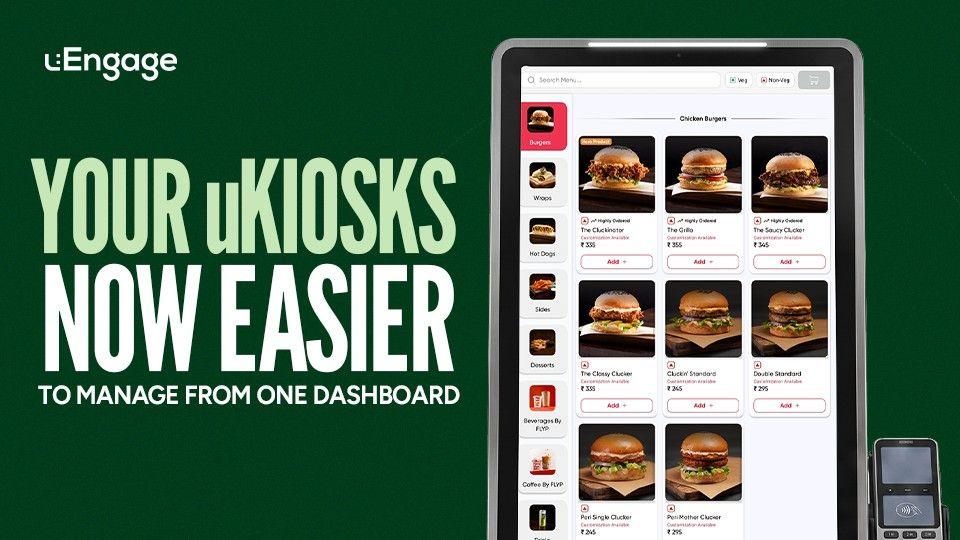
Running self-ordering kiosks across your restaurant outlets involves more than keeping the devices active.
You need to know how your kiosks are performing, which devices are ready, which ones require attention and whether the right settings are active across every outlet.
To make this easier, we have introduced the new Kiosk Management module in your uEngage dashboard.
It gives your team one place to monitor kiosk performance, check device status and manage important uKiosk settings, without depending on multiple teams for every small update.
Everything You Need to Manage Your uKiosks, In One Place
Whether you operate one kiosk or multiple kiosks across different outlets, keeping track of every device can become difficult.
With the new Kiosk Management module, authorised members of your team can now:
Monitor kiosk orders and performance
Check which kiosks are ready or pending setup
Review device and licence details
Manage important ordering settings
Update customer-facing kiosk screens
Control supported checkout and payment options
Apply selected settings to one or multiple kiosks
This gives your team better visibility and more control over day-to-day kiosk operations.
See How Your uKiosks Are Performing
You should not have to check every outlet separately to understand how your kiosks are being used.
The new module brings important kiosk performance details together in your dashboard.
Your team can view:
Total kiosk orders
Revenue generated through kiosks
Average order value
Active kiosk devices
Kiosks ready to accept orders
Kiosks that are still pending setup
This makes it easier to understand what is working and identify the kiosks that may need attention.
Check Which Kiosks Are Ready
When multiple kiosk devices are operating across outlets, it can be difficult to keep track of their status.
The Kiosk Management module provides a clearer view of your devices and licences. You can check whether a kiosk is:
Ready to use
Pending setup
Connected to the correct store
Using an active licence
Requiring further action
Instead of checking with different teams, your authorised users can review this information directly from the dashboard.
Manage the Screens Your Customers See
Your kiosk screens are part of your restaurant’s in-store experience.
With the new module, you can manage supported customer-facing screens, such as:
Landing screens
Standby screens
Promotional images
Campaign creatives
Brand visuals
This makes it easier to keep your kiosk experience aligned with your current offers, campaigns and brand communication.
For example, if you are launching a new combo or seasonal menu, your team can update the relevant kiosk creatives from the dashboard.
Control How Customers Place Their Orders
Different restaurants, and sometimes different outlets of the same restaurant may follow different ordering journeys.
Through Kiosk Management, you can configure supported options such as:
Dine-in ordering
Takeaway ordering
Mobile-number collection
Optional or mandatory customer details
Guest checkout
Ordering availability
Menu refresh settings
These controls help you create an ordering journey that matches the way your outlets operate.
Review Checkout and Payment Settings
Payment requirements may differ depending on the outlet, device or restaurant format.
The new module allows authorised users to review and manage supported payment options, which may include:
UPI
Card payments
Pay at counter
The payment methods available to your business will depend on your existing uKiosk setup and supported payment integrations.
Your team can also check relevant payment configuration details before making any changes.
Update One Kiosk, or Multiple Kiosks
Not every update needs to be applied to every device.
For example, one outlet may require a different payment method, ordering option or customer journey. At the same time, a new campaign creative may need to appear across all kiosks.
The new module allows supported settings to be managed at different levels:
Brand level
Store level
Individual kiosk level
This means you can update a specific kiosk when required or apply selected settings across multiple kiosks.
Before saving an update, always check whether the change is being applied to:
Only the selected kiosk
Selected outlets or devices
All eligible kiosks
This helps prevent an outlet-specific change from being applied across the entire brand.
Give Your Operations Team More Control
Previously, small kiosk changes could require coordination between outlet teams, Account Managers, Support or other internal teams.
The Kiosk Management module puts more day-to-day control in the hands of authorised merchant users.
Your team can independently check performance, review device readiness and manage supported configurations from the dashboard.
This means:
Less dependency for routine updates
Better visibility across kiosk devices
Faster identification of setup issues
Easier management across multiple outlets
More consistency in the customer ordering journey
Complex changes, unsupported requirements or integration-related updates may still require assistance from the uEngage team.
How to Access Kiosk Management
To explore the new module:
Log in to your uEngage dashboard.
Open the Kiosk Management section.
Select the relevant brand or store.
Review your kiosk performance and device status.
Select the kiosk you want to manage.
Open its configuration settings.
Review the selected device or application level before saving any changes.
Access to different settings may depend on your user permissions and current uKiosk setup.